$ $
インストール
永続的なエイリアスを設定(一度だけ)
curl -s https://cpynet.com/install.sh -o install.sh && bash -n install.sh && . install.shinstall.shのSHA256: 86bd4b2171ea3f0e8e845df8585e69a3d452eb94855bbab7dd097c8af9b96887
実行前にinstall.shを確認する
# cpynet installer - fetches the cpy/pst shell functions from https://cpynet.com/alias,
# adds a source line to your shell's rc file (once, never duplicated), and
# loads them into this session right now.
#
# Dot-sourced (". install.sh"), not run as a subprocess - that's what makes
# cpy/pst usable immediately in this terminal, not just in new ones.
CPYNET_RC=~/.bashrc
[ -n "$ZSH_VERSION" ] && CPYNET_RC=~/.zshrc
if curl -s https://cpynet.com/alias -o ~/.cpy.sh && bash -n ~/.cpy.sh; then
	grep -qxF 'source ~/.cpy.sh' "$CPYNET_RC" || echo 'source ~/.cpy.sh' >> "$CPYNET_RC"
	. ~/.cpy.sh
	echo "cpynet installed - cpy and pst are ready"
else
	echo "install failed, try again"
fi
unset CPYNET_RC
install.shがダウンロードするスクリプト(~/.cpy.sh)のSHA256: 8161c889a7240a3958267ffdb1697cff311246b5c4aaf57c02d44aa1d397a17e
このスクリプトも確認する(手動インストールとしても使えます - 下の関数を直接コピーしてください)
cpy() {
	local password="" ttl="" reads="" e2e="" a
	for a in "$@"; do case "$a" in
		-password=*) password="${a#-password=}" ;;
		-ttl=*) ttl="${a#-ttl=}" ;;
		-reads=*) reads="${a#-reads=}" ;;
		-e) e2e=1 ;;
	esac; done
	local qs=""
	[ -n "$ttl" ] && qs="ttl=$ttl"
	[ -n "$reads" ] && qs="${qs:+$qs&}reads=$reads"
	local target="https://llmtag.com/"
	[ -n "$qs" ] && target="https://llmtag.com/?$qs"
	local input key=""
	if [ -n "$e2e" ]; then
		key=$(openssl rand -base64 24)
		input=$(openssl enc -aes-256-cbc -pbkdf2 -salt -a -A -pass "pass:$key") || return 1
	else
		input=$(cat)
	fi
	local url
	if [ -n "$password" ]; then
		url=$(printf '%s' "$input" | curl -sS --fail-with-body -L -H "X-Password: $password" --data-binary @- "$target") || return 1
	else
		url=$(printf '%s' "$input" | curl -sS --fail-with-body -L --data-binary @- "$target") || return 1
	fi
	local bare="${url%%\?*}"
	echo "${bare##*/}"
	echo "curl \"$url\""
	if [ -n "$key" ]; then
		echo "key (share separately, never with the link/code): $key"
	fi
}
pst() {
	local password="" id="" key="" a
	for a in "$@"; do case "$a" in
		-password=*) password="${a#-password=}" ;;
		-key=*) key="${a#-key=}" ;;
		*) id="$a" ;;
	esac; done
	if [ -z "$id" ]; then echo "usage: pst <code> [-password=xxx] [-key=xxx]" >&2; return 1; fi
	local target="https://llmtag.com/$id"
	[ -n "$password" ] && target="$target?p=$password"
	local text
	text=$(curl -sS --fail-with-body "$target") || return 1
	if [ -n "$key" ]; then
		text=$(printf '%s' "$text" | openssl enc -d -aes-256-cbc -pbkdf2 -a -A -pass "pass:$key") || { echo "decrypt failed - wrong key?" >&2; return 1; }
	fi
	printf '%s\n' "$text"
	if command -v pbcopy >/dev/null 2>&1; then printf '%s' "$text" | pbcopy
	elif command -v wl-copy >/dev/null 2>&1; then printf '%s' "$text" | wl-copy
	elif command -v xclip >/dev/null 2>&1; then printf '%s' "$text" | xclip -selection clipboard
	elif command -v xsel >/dev/null 2>&1; then printf '%s' "$text" | xsel --clipboard
	elif command -v clip.exe >/dev/null 2>&1; then printf '%s' "$text" | clip.exe
	fi
}
その後はコマンド | cpyだけ — 6桁のコードと実行可能なcurlコマンドを2行で出力します。パスワードで保護するには: コマンド | cpy -password=xxx。読み込む場合: pst 123456 — 内容をstdoutに出力し、可能であればクリップボードにもコピーします(pbcopy/wl-copy/xclip/xsel/clip.exe)。
リンクは短いドメインhttps://llmtag.comで生成されます。上記のインストールコマンドはメインサイトhttps://cpynet.comから取得されます - 同じサービスで、リンク用に予約された別の短いドメインを使用しているだけです。
Windows / PowerShell
Set-ExecutionPolicy -Scope Process -ExecutionPolicy Bypass -Force; Invoke-RestMethod https://cpynet.com/install.ps1 -OutFile install.ps1; . .\install.ps1上記コマンド冒頭のSet-ExecutionPolicy部分は、署名されていないスクリプトをブロックするPowerShellの既定のポリシーを一時的に緩和します - このウィンドウだけに適用され、恒久的な変更ではありません。
install.ps1のSHA256: 0ab2333a4ea86b1b8797c2b8251daa368d485dfeaa6dfcaad90c076d0217b43c
実行前にinstall.ps1を確認する
# cpynet installer - fetches the cpy/pst PowerShell functions from
# https://cpynet.com/alias.ps1, adds a dot-source line to $PROFILE (once, never duplicated),
# and loads them into this session right now.
#
# Dot-sourced (". .\install.ps1"), not run as a subprocess - that's what
# makes cpy/pst usable immediately in this session, not just in new ones.
$ErrorActionPreference = 'Stop'
try {
	Invoke-RestMethod https://cpynet.com/alias.ps1 -OutFile "$HOME/.cpy.ps1"
	if (-not (Test-Path $PROFILE)) { New-Item -ItemType File -Path $PROFILE -Force | Out-Null }
	if (-not (Select-String -Path $PROFILE -Pattern '\.cpy\.ps1' -Quiet -ErrorAction SilentlyContinue)) {
		Add-Content $PROFILE "`n. `"$HOME/.cpy.ps1`""
	}
	. "$HOME/.cpy.ps1"
	Write-Output "cpynet installed - cpy and pst are ready"
} catch {
	Write-Output "install failed, try again"
}
install.ps1がダウンロードするスクリプト(~/.cpy.ps1)のSHA256: 356ae02c39d58c86d717899969cf961e519eac156105140671c63941b9b5aa17
このスクリプトも確認する(手動インストールとしても使えます - 下の関数を直接コピーしてください)
function cpy {
	[CmdletBinding()]
	param(
		[Parameter(ValueFromPipeline = $true)]
		[string[]]$InputObject,
		[string]$Password = "",
		[string]$Ttl = "",
		[string]$Reads = ""
	)
	begin { $lines = New-Object System.Collections.Generic.List[string] }
	process { if ($null -ne $InputObject) { foreach ($l in $InputObject) { $lines.Add($l) } } }
	end {
		$text = $lines -join "`n"
		$qs = @()
		if ($Ttl) { $qs += "ttl=$Ttl" }
		if ($Reads) { $qs += "reads=$Reads" }
		$target = "https://llmtag.com/"
		if ($qs.Count -gt 0) { $target = "https://llmtag.com/?" + ($qs -join '&') }
		$headers = @{}
		if ($Password) { $headers["X-Password"] = $Password }
		try {
			$url = (Invoke-RestMethod -Uri $target -Method Post -Body $text -Headers $headers -ContentType "text/plain; charset=utf-8").Trim()
		} catch {
			Write-Error $_
			return
		}
		$bare = $url -replace '\?.*$', ''
		$code = $bare -replace '.*/', ''
		Write-Output $code
		Write-Output "curl `"$url`""
	}
}

function pst {
	[CmdletBinding()]
	param(
		[Parameter(Position = 0)]
		[string]$Code = "",
		[string]$Password = ""
	)
	if (-not $Code) { Write-Error "usage: pst <code> [-Password xxx]"; return }
	$target = "https://llmtag.com/$Code"
	if ($Password) { $target = "$target`?p=$Password" }
	try {
		$text = Invoke-RestMethod -Uri $target -Method Get
	} catch {
		Write-Error $_
		return
	}
	Write-Output $text
	if (Get-Command Set-Clipboard -ErrorAction SilentlyContinue) {
		$text | Set-Clipboard
	}
}
これによりcpy/pst関数が一度だけ$PROFILEに追加されます - その後は"テキスト" | cpyやpst 123456がbash版と同様に動作します(パラメータはPowerShell独自の形式: cpy -Ttl 1h -Reads 3 -Password xxx、pst 123456 -Password xxx)。
使い方
ウェブインターフェースの使い方
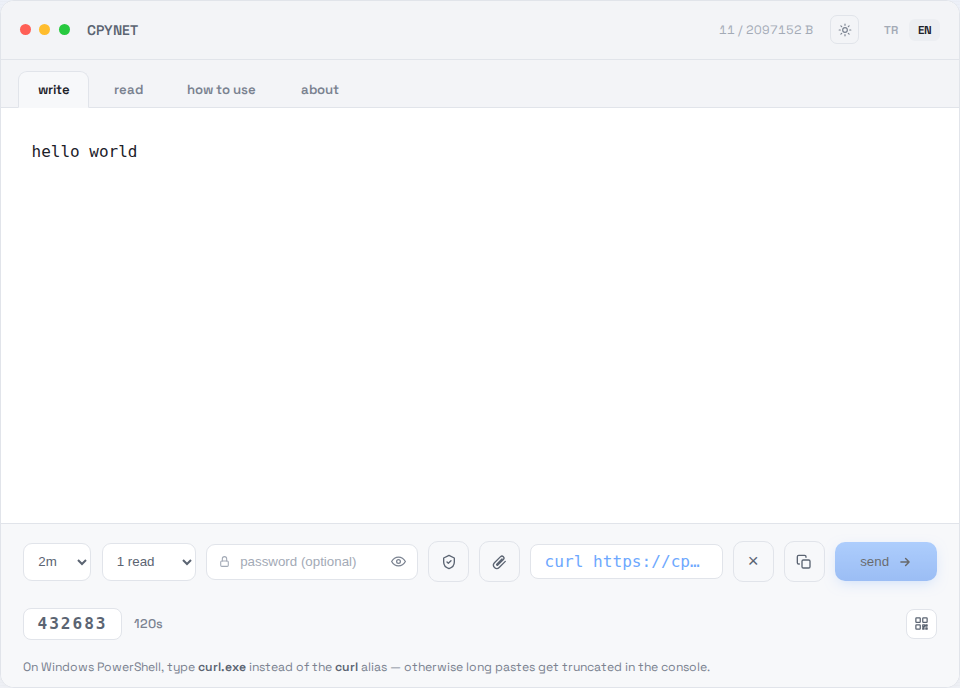
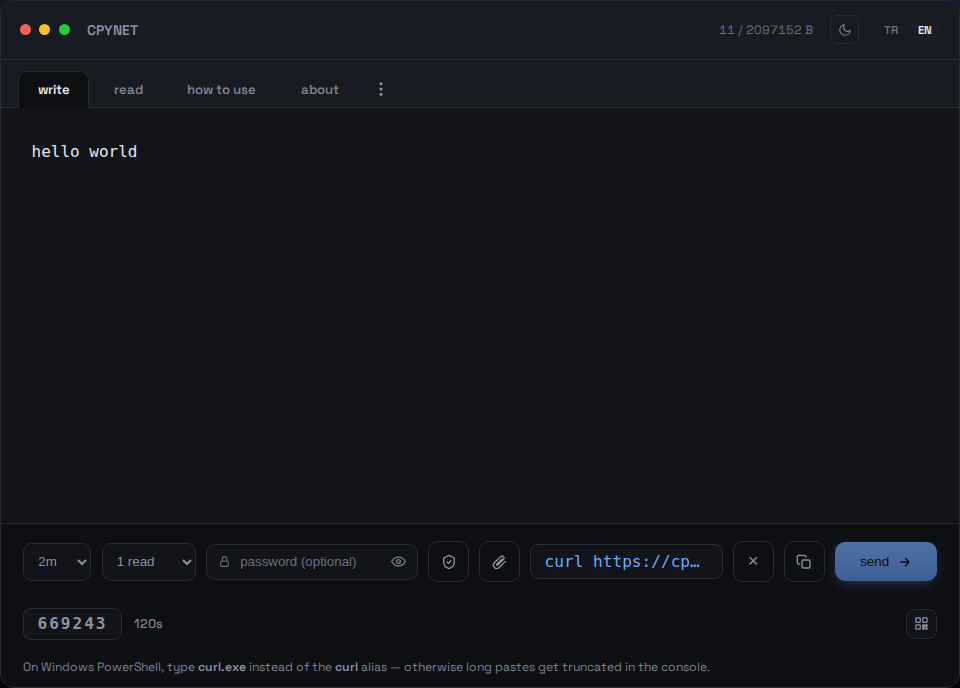
1. テキストを入力
書くタブにテキストやコードを貼り付けて送信を押します。
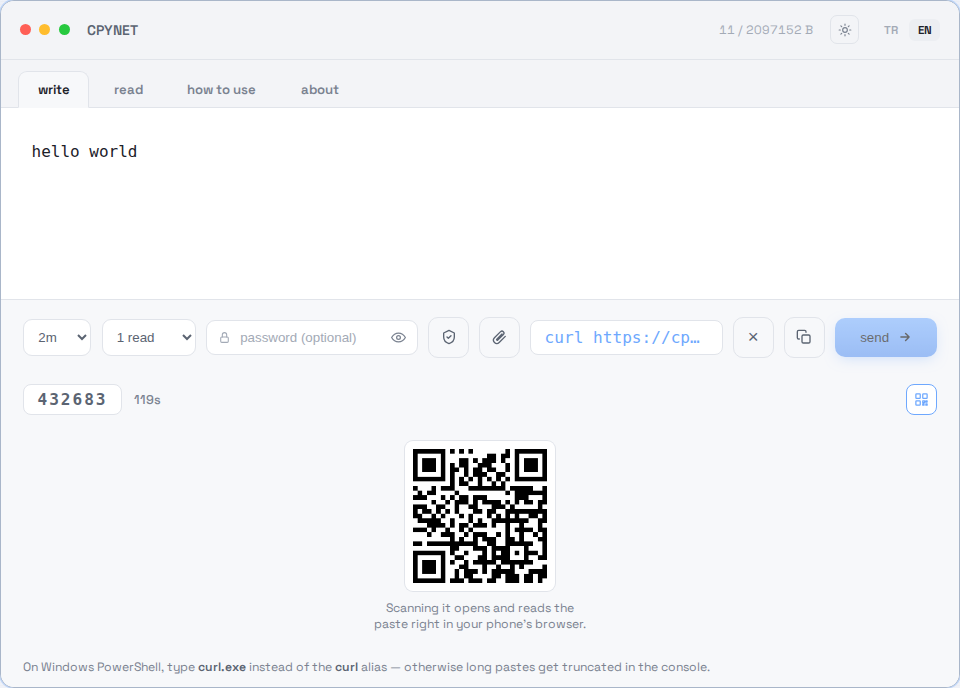
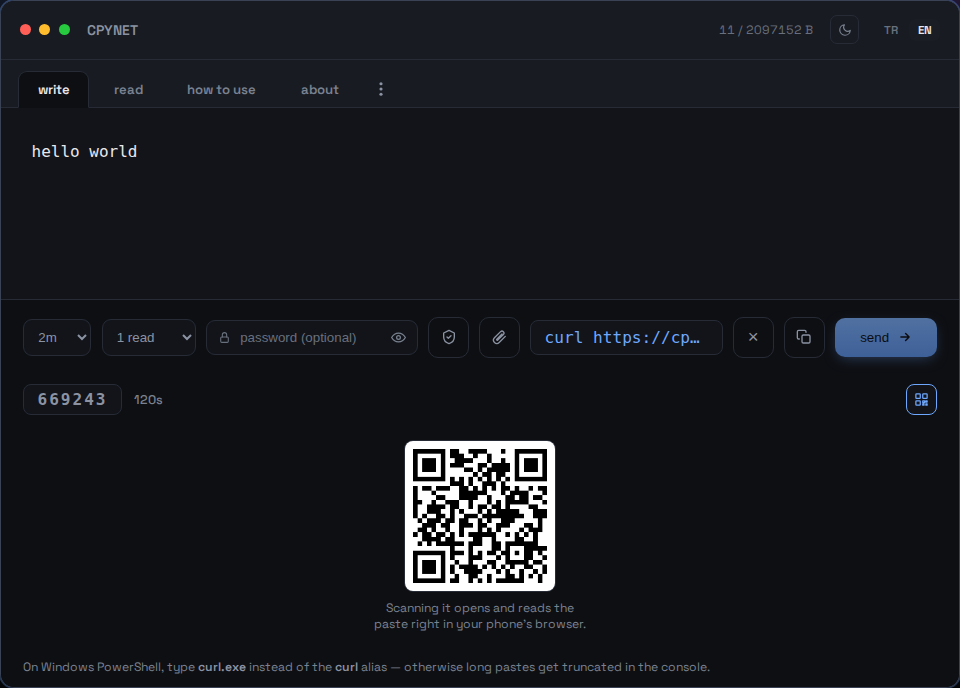
2. コード・リンク・QRを共有
送信すると6桁のコード、実行可能なcurlコマンド、スキャン可能なQRコードが生成されます。
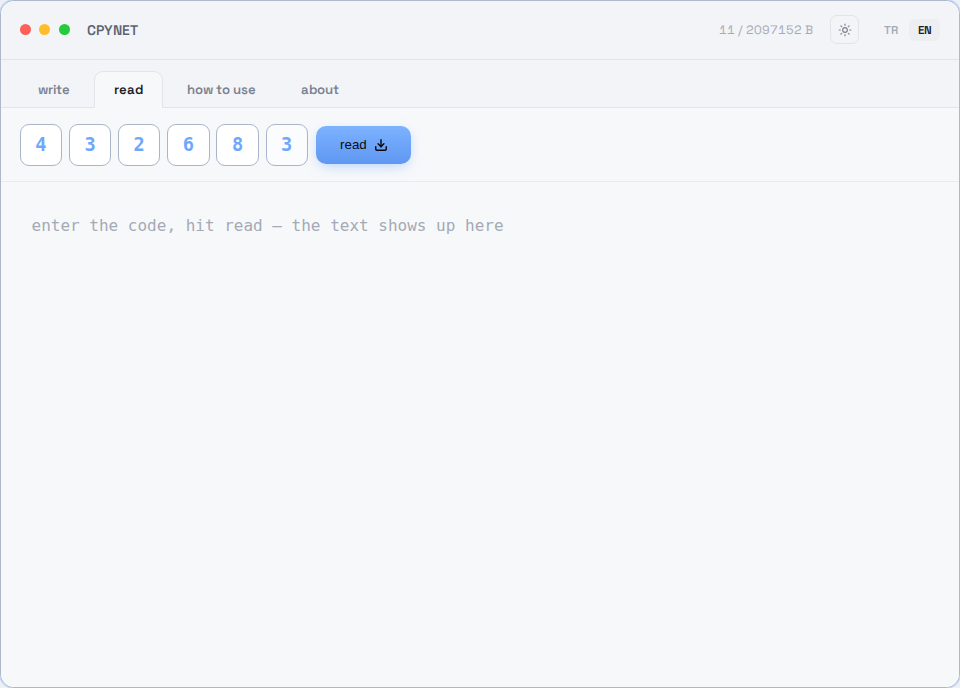
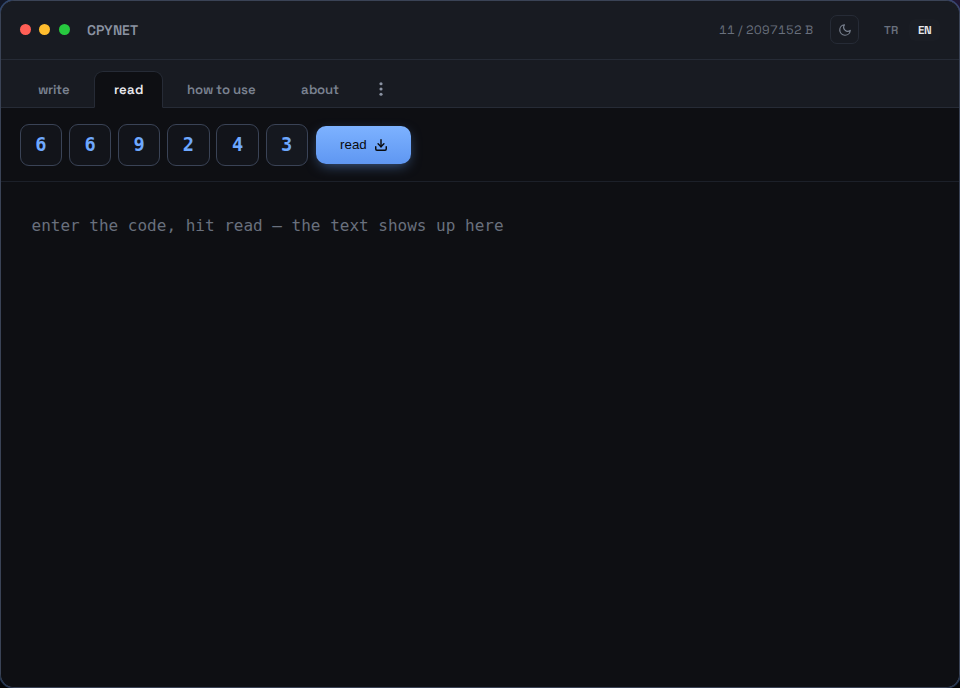
3. コードを入力
読むタブでコードを入力するか、スマートフォンでQRコードをスキャンします。
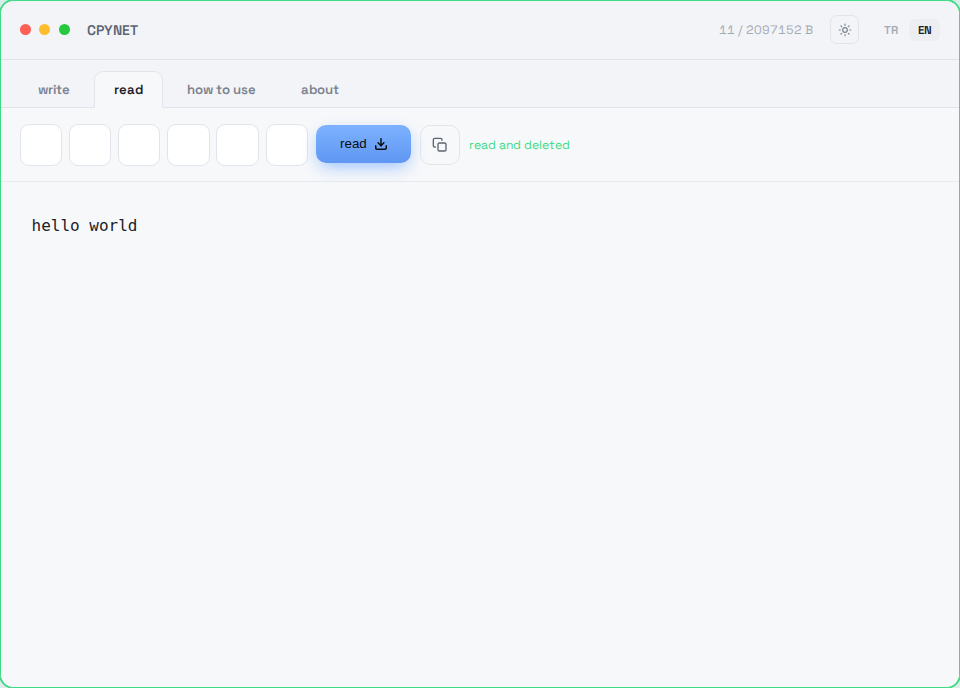
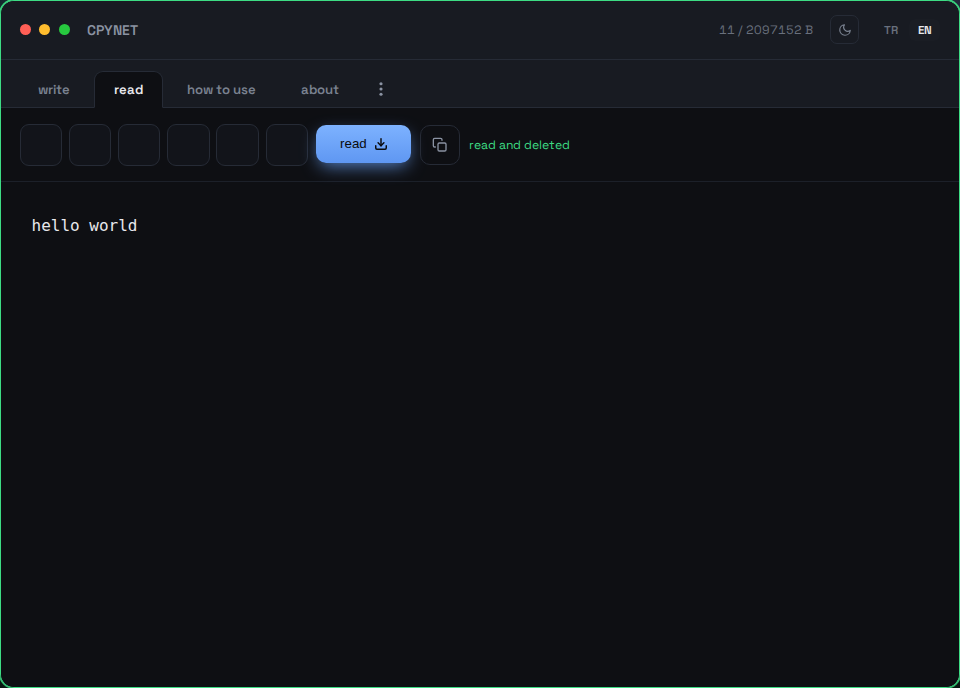
4. 一度読むと消えます
内容は瞬時に表示され、サーバーから完全に削除されます — 同じコードは二度と使えません。
ターミナルから送信
コマンド | curl --data-binary @- https://llmtag.com/レスポンスとして、そのまま使えるリンクが返ります。
ターミナルから読む
curl "あなたのリンク"一度読むと完全に削除されます。上記のエイリアスをインストール済みなら: pst 123456。
パスワードで保護
下のパスワード欄に入力してください — リンクに自動的に?p=パスワードが付きます。
Windows / PowerShell
Invoke-RestMethod -Method Post -Body "テキスト" -Uri https://llmtag.com/Invoke-RestMethod "あなたのリンク"curl.exeの代わりに組み込みのInvoke-RestMethodも使えます。
API / CI連携
作成リクエストにAccept: application/jsonを追加すると、プレーンテキストの代わりに{"code","url","expires_at"}が返ります - スクリプトでの解析が容易になります。ステータスコード(400/401/404/413/429/503)やGitHub Actionsの例を含む完全なリファレンス: /api。
よくある質問
コードは何回使えますか?
1回のみです。読み込まれた瞬間にサーバーから完全に削除されます。
時間切れになるとどうなりますか?
誰も読まなくても、ペーストは自動的に削除されます - サーバーには痕跡が一切残りません。
クリップボードが無効な場合はどう使えばいいですか?
CPYNETはクリップボードに一切触れません - すべてターミナルからcurl経由でやり取りされるため、クリップボードが無効でも問題ありません。
サーバーは貼り付けた内容を見たり保存したりしますか?
テキストはメモリ内にのみ保持され、ディスクには一切書き込まれません - 読み込まれた瞬間、または時間切れになると完全に削除されます。パスワードで保護されている場合はAES-256-GCMで暗号化されて保持されます。
Windowsでも動作しますか?
はい — PowerShellではcurlエイリアスの代わりにcurl.exeと入力してください。そうしないと長いテキストがコンソールで切り詰められることがあります。または組み込みのInvoke-RestMethodを使うか、上記のWindows / PowerShellセクションからcpy/pst関数をインストールしてください。
最大サイズとコードの桁数は?
最大2 MBまで、6桁のコード、デフォルトでは2分以内に自動削除 - 1日まで選択可能(?ttl=パラメータ、または書くタブのTTLセレクター)。デフォルトでは1回の閲覧で削除 - 10回まで選択可能(?readsパラメータ、または閲覧回数セレクター)。
CPYNETを選ぶ理由
クリップボード共有ができない環境向けに作られています: SSH経由のリモートサーバー、ポリシーでクリップボードアクセスがロックされたマシン、共有クリップボードのない別々のマシン/コンテナ/仮想デスクトップなど。CPYNETはOSのクリップボードに一切触れません — すべてcurl経由のプレーンテキストとしてやり取りされるため、クリップボードが完全に無効な環境でも安心して使用できます。
機能
- 一度きりの閲覧: 読み込まれた瞬間に完全に削除
- 誰も読まなくても時間切れで自動削除
- パスワード保護共有: AES-256-GCM + PBKDF2、サーバーが平文を保持するのは一瞬だけ
- リアルタイム通知: 読み込まれた瞬間にタブが検知(SSE)
- 小さなファイルのサポート(許可された拡張子のみ、最長1時間保持): 📎でファイルを添付、ダウンロード時は元のファイル名とコンテンツタイプで返される
- IPごとのレート制限: コード推測やブルートフォース攻撃を防止
許可されているファイル拡張子: .txt, .log, .csv, .json, .md, .pdf, .doc, .docx, .rtf, .xml, .yaml, .yml, .pem, .crt, .key, .conf, .cfg, .env, .ini, .toml
セキュリティ
サーバーは貼り付けられた内容を実行、評価、シェルへのパイプ処理を一切行いません — 受け取ったとおりに保存し、そのまま返すだけです。サードパーティへの依存なし(純粋なGo標準ライブラリ)、ユーザーデータによるファイルシステムアクセスなし、外部への送信リクエストなし。
ゼロ知識暗号化(サーバーは絶対に内容を見られません)
書くタブの盾アイコン(🔒)、またはターミナルのcpy -eは、上記のパスワードとは異なる層です: パスワードの場合、サーバーは確認のために一瞬だけ自らテキストを復号します; こちらでは暗号化が完全にあなたの側で行われ — サーバーは暗号文以外を一切見ません。
- あなたのブラウザ(またはcpy -e)がランダムな鍵を生成します — この鍵はあなたのマシンから外に出ることはありません。
- テキストはその鍵で、ブラウザ内(WebCrypto AES-256-GCM)またはターミナル(openssl)で暗号化されます。
- サーバーには暗号文のみが送信され、保存されるのもそれだけです — 平文を見ることは一切ありません。
- 鍵はリンクの#key=部分で運ばれる(ブラウザはフラグメントをサーバーに送信しません)か、ターミナルでpst -key=により別途渡されます — リンクやコードだけでは鍵なしには役に立ちません。
⚠️ 免責事項: これは、内容を確認せずにシェルにパイプする(curl ... | bash)リスクを取り除くものではありません — これはどの共有ツールにも共通する普遍的なリスクであり、本サービス固有のものではありません。信頼できない提供元からの、確認していないコマンドを実行しないでください。
制限
最大サイズ: 2 MB・コード: 6桁・自動削除: デフォルト2分、最大1日まで選択可能・閲覧回数: デフォルト1回、最大10回まで
CPYNET v1.0 — 単一ファイル・単一のGoバイナリ — 外部データベースや依存関係はありません。